T3 Labels : Tutorial
- Introduction
- Checklist
- Accessing the T3 Label Studio
- Generating a Blank Label
- Understanding Label Templates
- T3 Label Studio vs. T3 API
- Enabling Debug Borders
- Changing Padding
- Building a Layout
- Handling Errors
- Adding QR Codes
- Next Steps
In this tutorial, we'll cover all the steps needed to create a custom label using the T3 Label Studio. The following concepts will be covered:
- Creating a new thermal label template
- Using a barcode in a label layout
- Adding and styling text in a label layout
- Adding a logo in a label layout
- Using Metrc package data in a label
Time to complete: 7-8 minutes
Throughout the tutorial, there will be instructions on what to do, and explanations on why we're doing it that way.
The sections explaining why will be formatted like this. If you just want the next step, you can skip these blocks and jump ahead.
You'll need the following:
- Printer: a laser, inkjet, or thermal printer. This tutorial will use a thermal printer, but as you will see, the T3 label platform can seamlessly move in between labels. The printer should be connected to your computer and have drivers installed.
- Labels: thermal labels, a label sheet (like Avery labels), or even a piece of printer paper will work.
- T3 Extension: install the T3 extension and login to Metrc
The following aren't strictly necessary, but if you don't have them you'll have to skip a few valuable tutorial steps:
- Package permissions: Ability to view packages for a Metrc license.
- T3+ subscription: Enables you to automatically load data from the T3 API via the T3 Label Studio.
NOTE: if you don't have a T3+ subscription, your labels will render with a T3 watermark applied.
The T3 Label Studio can be accessed by clicking the T3 toolbar menu in the bottom right, shown below.

Acccessing the T3 Label Studio
The label studio has two vertical panes. The left pane is for configuring your label, and the right pane displays the generated PDF.

T3 Label Studio panes
The left pane has multiple tabs, each of which controls a different part of your label.
- The Template tab controls what kind of labels you're printing on.
- The Layout tab defines how label content is arranged.
- The Label Data tab provides the list of data. Each item corresponds to one tag. You can load data from CSV or select Metrc objects like packages, plants, or transfers.
- The Default Data tab includes values shared across all labels.
- The Built-in Data tab includes values provided by T3.
- The Images tab manages images used in labels.
- The Settings tab controls how your labels are printed.
- The Import/Export tab allows you to export a label's configuration to file, or load an exported configuration from file.
In general, you will be primarily using the Template, Layout, and Label Data tabs.
Under the Home tab, click the START FRESH button.
This does three things:
- Selects a 3x1 thermal label template
- Selects a blank layout
- Sets the label data to a single empty value
You'll see a blank label automatically render:

Starter blank label
Click into the TEMPLATE tab to inspect the template for our 3x1 label:

3x1 template
These values control the label dimensions, the page dimensions, and the arrangement of labels on each page. The distinction between label and page can be confusing. Recall that we're printing a collection of labels:
- The label is the individual rectangle, usually an adhesive sticker.
- The page is how those stickers are arranged and fed into the printer.
- For thermal labels, the label size and the page size are the same.
- For label sheets (Avery address labels, for example) a page will contain multiple labels in rows and columns. (T3 automatically breaks sets of labels into pages for you.)
For this tutorial, we're using a thermal label, so we're essentially treating the page and the label as the same thing. There are no margins, no gaps, one column, and one row.
The T3 Label Studio is an easy-to-use tool that lets users create label PDFs without needing to know how to work directly with the T3 API. (Under the hood, all labels are being generated by the T3 API.)
Throughout the label studio, you'll see a recurring pattern:
- Forms and controls, which allow you to easily view and modify individual values that control label outputs
- Raw data inputs, which display the data actually being sent to the API
You can use either one of these to make changes to your labels.
Under the Name field, give this template a new name: 3x1 thermal labels - tutorial.
T3+ enables auto-save for any named templates and layouts.
- If you don't want to save your templates or layouts, simply don't provide a name.
- T3 will save each time a PDF is successfully generated only if the name field is set.
- The name is used as a unique identifier for that template or layout.
- Saving is automatic and will overwrite previous settings.
- Layouts and templates are saved separately, with separate names.
- Saved templates and layouts will be available in the starter template or starter layout autocomplete dropdowns.
- Saved templates and layouts will only be accessible by Metrc users who also have access to that license.
- If you want to copy or fork a layout or template, just change or add to the name: add "copy" or "v2" for example.
- The layouts and templates will start saving to that new name, and the configs saved under the old name will remain unchanged.
Next to the GENERATE PDF button, check the Draw borders box, and the blank label will re-render with the borders of the printable area drawn with a box.
After the PDF regenerates, you'll see the following:

Blank 3x1 label with debug borders enabled
While you're building your labels, T3 can draw the borders of everything in your label to help you visualize how everything is being laid out.
Once your label is ready, you can uncheck the box to remove
Currently, we can see that the preselected label padding is 0.125 inch (or 1/8 inch). We'd like to use a bit more space, so let's change it to .0625 inch (1/16 inch).
Uncheck the Draw borders box before continuing.
T3's AI integration can automatically make changes to your template config.

Changing a template's padding with AI
When using the T3 AI integration, be as specific as possible. The AI is given context on what your current template configuration is, as well as what the available parameters are, so it should understand values and field names you refer to even if they don't exactly match.
As with all AI models, your mileage may vary
Click the LAYOUT tab to reveal the layout builder.

Layout builder with empty layout
The layout builder will look very similar to the template builder.
- Templates and layouts both can use a starter value
- Templates and layouts both can be built with AI prompts
- Templates and layouts both have names, and are auto-saved (independently)
A layout controls what appears on the label and how it is laid out. Each layout is made up of a list of layout elements.
Like templates, layouts with a name can be auto-updated and reused later. Set the layout name to Tutorial label
Layout elements are a list of elements that are all stacked on top of each other.
Examples of layout elements:
- Images
- Barcodes
- Text
- Tables
- Boxes
Let's start by adding a box to get a feel for how layout elements work. Click ADD NEW ELEMENT to add a box to our layout element list.

Layout with BOX element added
Some things to notice:
- A BOX card appears in the left pane, with some controls.
- Each label now has a box drawn around its border, with the same dimensions as the debug border.
- The layout config at the bottom shows the new layout element data as it is sent to the API
Change the box's X Range to 50% / 100%, and change Y Range to 0% / 66%
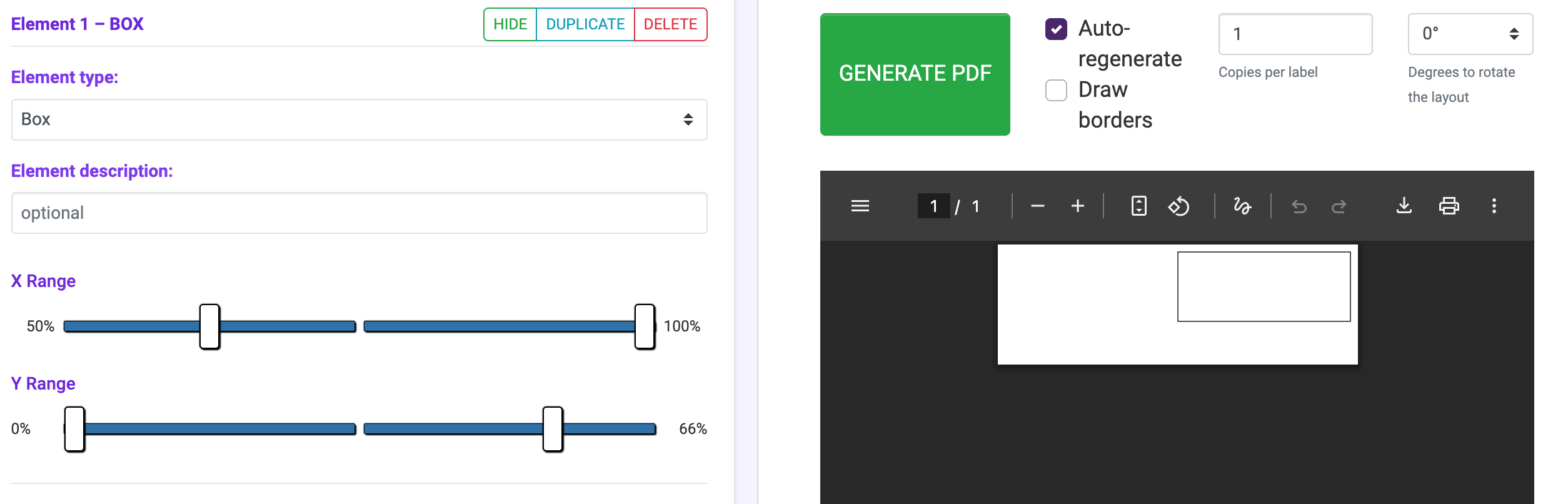
Box with range adjustments applied
- An X Range of 50%-100% means that only the right 50% of the printable area is used.
- A Y Range of 0%-66% means that only the top 2/3 of the printable area is used.
With these sliders, you can make a layout element cover any rectangle.
Layout elements are not sized by a fixed distance like "1 inch", but by percentage of total printable width and height. This allows the layout to shrink and grow to fit the template. If you have a 3x1 template and decide it's too small, you can just switch over to a 4x2 template, and the layout will automatically grow to fill that space.
Let's add a text element at the bottom of our label.
- Click ADD NEW ELEMENT
- Set Element type to
Text - Set Y Range to
67%/100%to occupy the bottom 33% of the printable area. - Leave X Range at
0%/100%to occupy the full width. - Set Value template to
10123456789(more on this later)
After the PDF regenerates, you should see the following:

Layout with text added
"Textual" layout elements are use for displaying text on a label. There are two primary textual layout elements:
Text: used for displaying text as a wrapped paragraphTable: used for displaying a table made up of rows/columns of cellsAs with all other layout elements, textual elements are restricted to a sized rectangle container (controlled with X Range and Y Range).
We haven't set a value for font size, so T3 is using the default font size of 6. This is too small, we'd like the font to be larger.
Set Font size to 36 and you should see the following:

Layout with font size applied to text
The text is now overflowing its container. Read on to learn how to auto-resize text.
Textual elements have multiple settings to control text appearance:
- Font family
- Font size
- Line spacing
- Horizontal/vertical text alignment
- Text resize strategy
To fix the text from overflowing, change the Resize Strategy to Shrink Text.
You should now see the text has been shunk to fit inside its container:

Layout with shrink strategy applied to text
When generating a series of labels, the text content between labels will differ, but you may not want it to overflow its container.
Textual elements allow you specify a resize stragegy, which selects a "strategy" to be deployed when T3 detects text overflows its container.
Allow Overflow: text will overflow its container with no interventionShrink Text: T3 will progressively reduce font size until the text fits within its container, or until a minimum font size is reachedTruncate Text: T3 will progressively remove letters from the end of the text and append an ellipsis (...) until the text fits within its container, or until a minimum text length is reachedNote: if text does not overflow its container, T3 will leave it alone.
Click the Label Data tab to reveal the label data source tab.
In T3, printing labels involves printing a list of data entries. It could be a list of package data, or a list of empty objects containing nothing at all.
- Sometimes the data list is a list with only one data entry. You might use this if you only want to print a single label.
- Sometimes the data list entries are empty. You might use this if all the labels are exactly the same.
These are all valid in T3, as long it is a list of data entries.
When you clicked START FRESH, it set the label data to the following:
[
  {}
]
This is an example of a single empty data entry. T3 understands that this single empty data entry corresponds to one empty label.
If you wanted five empty labels, you'd use five empty data entries:
[
  {},
  {},
  {},
  {},
  {}
]
You would see five empty labels:

Five empty labels
In the Label Data tab, there's a dropdown for data sources:

Label data source selector
For this tutorial, we'll use the demo packages. Select Load demo packages from the data source dropdown, and then click LOAD DEMO DATA. The demo package data will populate below it after a moment.

Populated demo package data
This data source loads 10 demo packages into your data list.
After the PDF regenerates, you'll notice there are now 10 identical copies of your label (one for each data list entry).
Data sources are the different ways you can populate your data list.
Examples:
- Manual data entry
- Load data from a CSV
- Use demo data.
- Load data collections directly from Metrc (T3+ only).
Let's display each demo package's tag number on the corresponding label.
Return to the Layout tab and find the Text element we created, which currently displays 0123456789 on all labels - delete this.
A much simpler way of adding this value is to use the field lookup. The autocomplete field below the Value template allows you to search for any available field names, and displays an example value on the right. Selecting a value and clicking INSERT will auto-add it to the value template with brackets pre-added.

Finding data values via field autocomplete
The label PDF will update to show each unique package label:

Populated demo package data
Some layout elements like
Textuse a value template to decide what is shown in that element.
- When we entered
0123456789, this instructs T3 to show exactly that value in every label.- When we entered
{{package.label}}, this instructs T3 to inject thelabelvalue in thepackageentry in the data list.The
{{ }}(sometimes called mustaches) tell T3 to inject a value. This injection is done via Jinja syntax.If we look into the data list, we can see the overall structure is:
{
  "package": {
    "label": "1AA400001234000000005555",
    ...
  },
  "package": {
    "label": "1AA400001234000000005556",
    ...
  },
  ...
}
Thus,
{{package.label}}tells T3: "For each label, look insidepackageand get me thelabelvalue"
It's useful to understand how to interpret and troubleshoot T3 Label Studio errors, but this section can be skipped.
Let's force the T3 label generator to return an error to practice troubleshooting.
Change the Value template to an intentionally mistyped one:
{{packagez.label}}to see what we get back:
T3 label error message*
Your error message will look something like this:
{
  "error": {
    "message": "400 Bad Request: Failed to render Jinja template for element 'TEXT' with context keys: ['package', 'images', 't3']. Error: 'packagez' is undefined",
    "status_code": 400,
    "timestamp": "2025-08-28T21:29:12.394326+00:00",
    "type": "BadRequest",
    "url": "http://api.trackandtrace.tools/v2/labels/generate?licenseNumber=EXAMPLE0001"
  }
}
We can see that T3 is attempting to match
packagezagainst the available data and not finding a match:
packageis our existing packageimagesare the images we've provided (we haven't provided any, so this is empty)t3is the built-in text and images that T3 provides for usFix the Value template before proceeding.
Let's add a scannable QR code to our labels.
- Click ADD NEW ELEMENT
- Select the
QR Codelayout element type - Set X Range to
0%/50% - Set Y Range to
0%/66% - Set Value template to
{{package.label}}
When the PDF regenerates, you should see a QR code in the top-left of your label. Use your phone to scan this QR code, you should see the package label appear.

Label with scannable QR rendered