Getting started
To get started using Objectivity Test Framework download and install Visual Studio templates from here:
In case of problems with running tests in your internet browser remember to update version of Selenium WebDriver from Nuget packages.
-
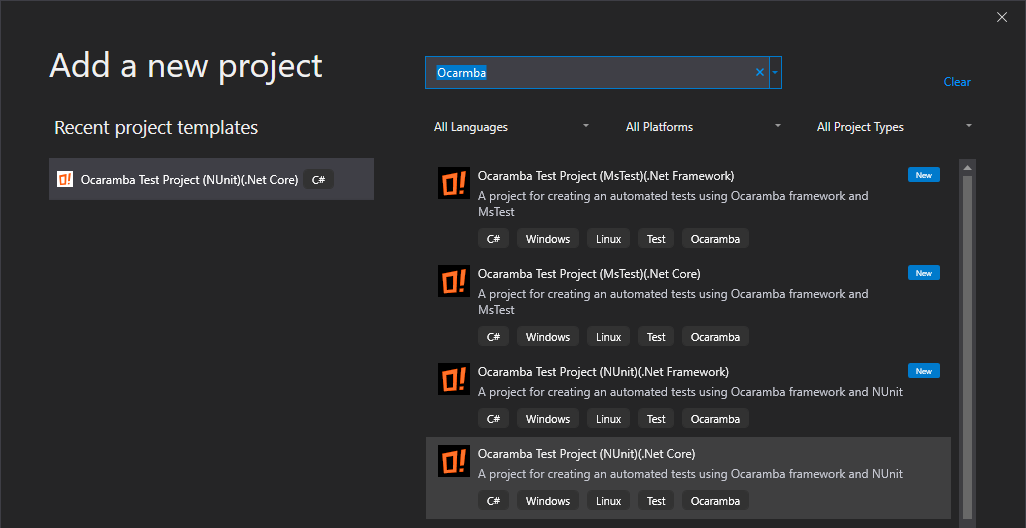
1.1. Create a new Ocaramba.ProjectExample.NUnit.NetCore project in Visual Studio.
-
1.2 Edit appsettings.json. Change settings stored in appsettings.json to target your application under tests, or appsettings.Linux.json if you are planning to run test on Linux. File appsettings.Linux.json is used if environment variable ASPNETCORE_ENVIRONMENT is set to "Linux".
-
1.3 Edit Page Object Pattern classes inherits class ProjectPageBase added as a content to you project during creation of new project.
-
1.4 Edit your first test class inherits ProjectTestBase added as a content to you project during creation of new project. More details about ProjectTestBase clasess can be find here.
-
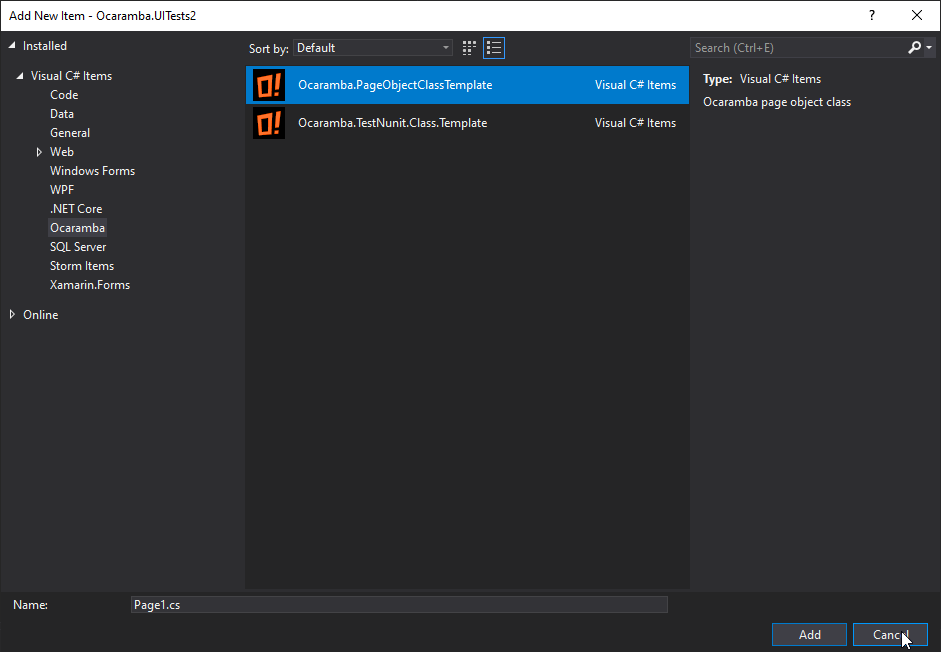
1.5 Add new Page Object classes or test classes using New Item Ocaramba templates
-
1.6 Build your project and run first test
-
1.7 In case of problems with executing test, update at least TestAdapter and Selenium browser drivers.
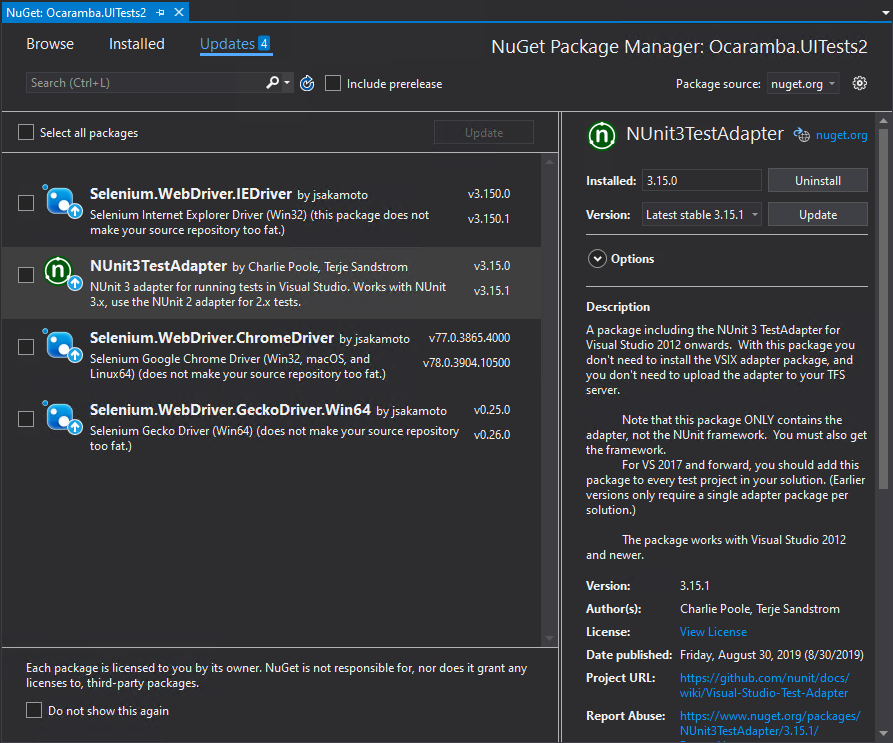
You can also try to uninstall and install back one of browser drivers.
2. If you want to use our framework with SpecFlow first install “SpecFlow” plugin. Select Tools | Extensions and Updates from the menu in Visual Studio, switch to the Online search on the left and enter “SpecFlow” in the search field at the top right. More details here http://specflow.org/getting-started/
You can also clone project example of using our framework Ocaramba with SpecFlow from here and edit it to target your needs.